Share with others:

Google is giving me answers I don't trust. How do I get rid of UI summaries?

Nowadays, I often get a response from an artificial intelligence that has already read the content of the results, extracted the supposedly most important information, and prepared an answer. It can be helpful, but it can also miss the point so confidently that I don't even notice the error.
I've also encountered poor summaries of my own articles, especially tests, where my findings were taken out of context. The errors weren't serious, but the reader could form a wrong opinion about a device based on the answers.
I spend days testing a router, phone, computer, or car. I measure performance, check features, criticize flaws, and praise strengths. Then, an AI might misunderstand one sentence and the reader might get a completely different idea of the product. Fortunately, there are several ways to bypass Google’s UI summaries and get back to the original information.
Why does Google sometimes misunderstand correct information?
Google's AI Overviews aren't just snippets of web pages. Generative AI pulls information from multiple sources and combines it into a new answer. It can use an approach called retrieval-augmented generation, or RAG, in which the model bases its answers on the information it has learned. But even the right source doesn't guarantee the right conclusion.
Let's imagine that I publish on Computer News laptop test, which has a battery life of ten hours during office work and two hours during gaming. If Google lumps together the numbers without proper context, it could create the impression that the laptop offers ten hours of gaming.
The problem is not the incorrect data, but the interpretation of it. The same can happen with prices, specifications, dates, and product comparisons. It is especially dangerous when the answer contains a link to a credible source, as the reader may mistakenly conclude that it confirms all the claims made.
First, I'll check what the source actually says.
The most reliable way to verify a UI summary remains to visit the original website. Google displays links to sources for many answers. If the summary states that a particular graphics card consumes 300 W, I'm curious if this is typical consumption, the highest measured value, or data for a specific configuration.
When it comes to tech products, I like to check at least two sources. The official documentation tells me what the device supports, and an independent test tells me how it actually performs.
Classic Google still exists, it's just a bit hidden
The simplest solution is to use the Web filter. When you search, look for the Web tab below the search box. If it's not visible, you can usually find it in the More menu. Google then displays mostly plain text links without the standard UI summary.
The advantage of this is that we don't need any additional software. The disadvantage is that we often have to reselect the tab for the next search. If we search dozens of times a day, this can quickly become annoying.
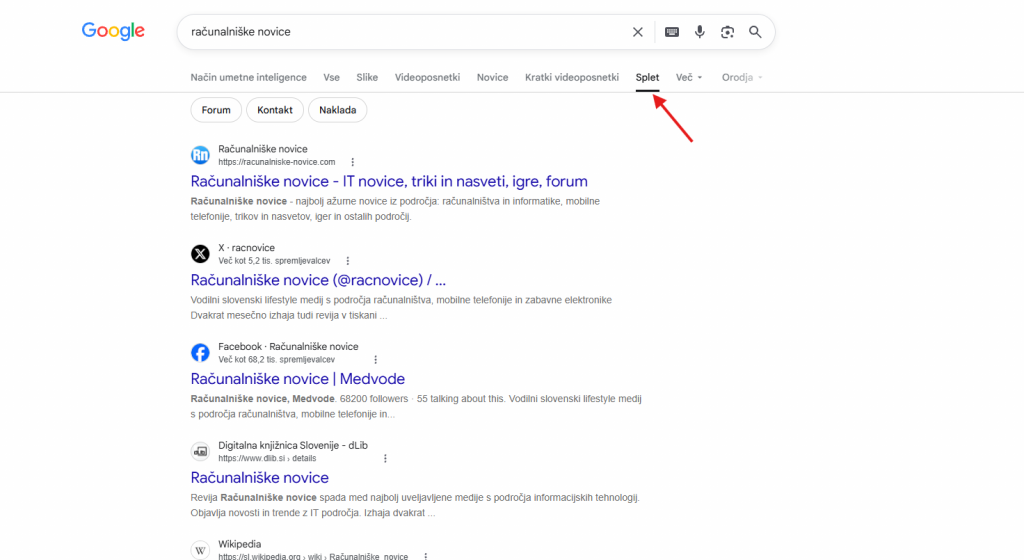
With one parameter, Google can become a regular search engine again
A more interesting solution is hidden in Google's web address. The parameter udm=14 allows direct access to the Web view. An example of searching for Computer News is as follows.
https://www.google.com/search?q=racunalniske+novice&udm=14
It's even more useful to set this search as the default in your browser. In Chrome, open Settings, search for Manage search engines, and add a new search engine that uses the following template.
https://www.google.com/search?q=%s&udm=14
The %s tag is automatically replaced by the browser with our search term. When we set this option as the default, we can open classic web results directly from the address bar. It is important to note that the parameter is not an officially guaranteed switch to permanently turn off the UI summaries. Google may change its behavior, but it is currently one of the most practical options.
The "-ai" trick is fast, but not always reliable
There's also a simple trick that doesn't require changing any settings. We add -ai to the end of the search term. For example, instead of a regular search, I can type:
Xiaomi 18 Pro -ai test
For many AI queries, the summary disappears. This is because Google uses the minus sign to exclude terms from results. However, this is not an official command to turn off AI. The effect is not guaranteed and may also affect results, especially when researching AI-related topics. It is convenient for occasional use, but for everyday work, the Web view setting is a better choice.
I can tell Google where to search
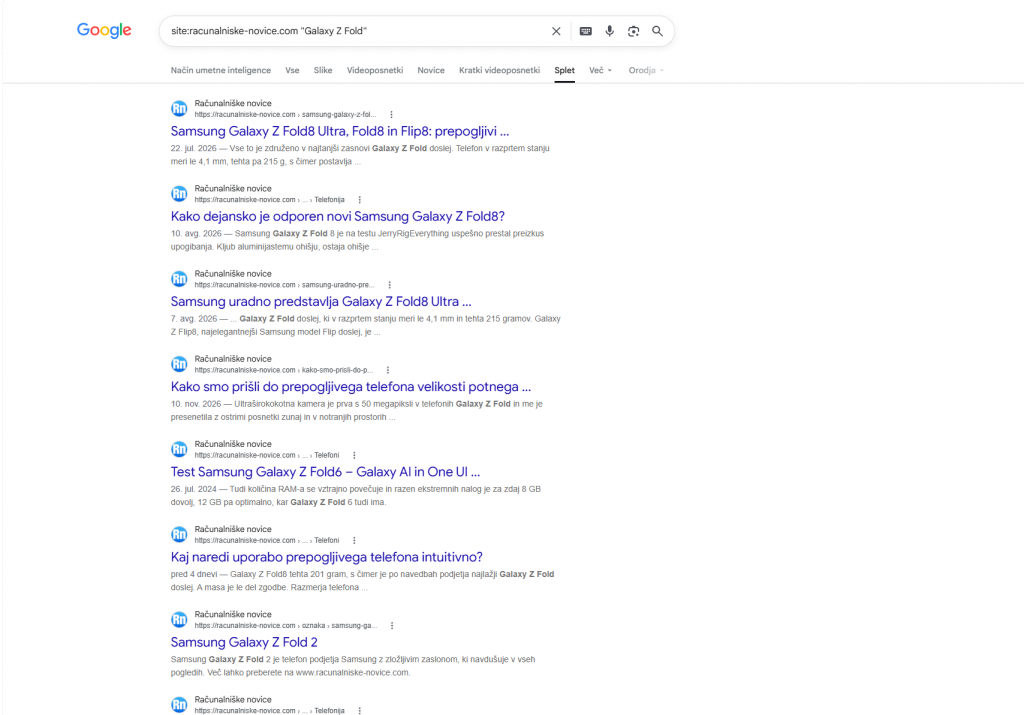
Sometimes it's more efficient to narrow down the query rather than trying to remove the UI summary. I use the site: operator to do this.
If I want to search for foldable phone tests on Computer News, I type:
site:racunalniske-novice.com "Galaxy Z Fold"
This limits the results to a specific domain. Quotation marks help to find a specific phrase. The time operators after: and before: are also useful when researching current information. Such queries do not guarantee the removal of UI summaries, but they increase control over the search and reduce the amount of irrelevant results.
Which online sources do I trust more?
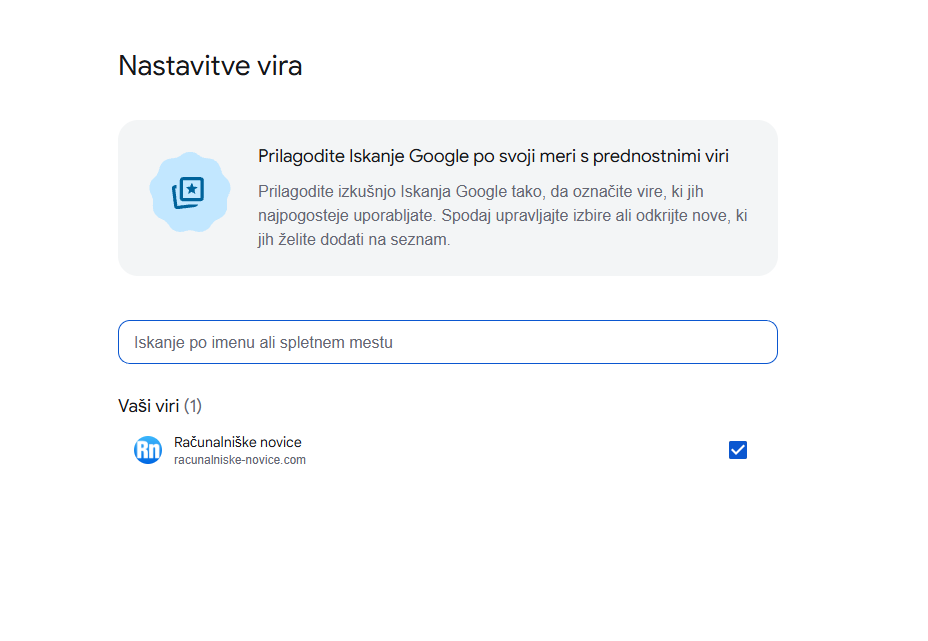
Google also offers a Preferred Sources feature that lets you choose your preferred online sources. If you regularly follow technology, you can add Računalniške novice and other professional media to your list. Google can display their content more frequently and prominently in relevant results.
The setting is accessible at google.com/preferences/source. The selected media outlets are not guaranteed a position, of course, nor does the feature mean that the AI will use their information exclusively. However, I like the idea of being able to at least have some influence on the selection of sources, rather than completely trusting the algorithm.
Extensions can automatically hide UI summaries
For users who don't want to change their search engine settings, there are extensions like Hide UI Overviews and Bye Bye, Google AI. Such add-ons typically identify page elements where Google displays UI summaries and hide them.
The important difference is that summaries are not necessarily turned off on Google's side. The extension mainly changes how they are displayed in the browser. Since Google frequently changes the user interface, extensions may stop working from time to time.
What about other search engines?
If you don't want to deal with Google's settings, you can simply change your search engine. DuckDuckGo allows you to limit or turn off Search Assist. It also offers a dedicated address noai.duckduckgo.com, intended for search without UI features.
Another option is Startpage, where you can turn off UI summaries in the appearance settings. Google also offers an experimental Web Guide, which uses artificial intelligence to organize web links into topic groups. This is not a search without UI, but it offers the user a more transparent path to the original web pages instead of one composite answer.
No search engine is best for all queries. It is important to have choice.
AI summaries also cause problems for online media
The issue of accuracy of information is not the only problem. UI summaries also affect visits to websites that create original content. A 2025 Pew Research Center study found that users clicked on the regular result when a UI summary appeared in about 8% of search page visits. Without the summary, this share was 15%. They opened the link within the UI summary in about one percent of visits.
This is important for the media. If a journalist takes measurements, photographs a product, and writes a detailed test, and an AI generates an answer from their work, the user can get the basic information without visiting the original page. In doing so, they also lose the context, photographs, methodology, and explanations that support the conclusions.
Fewer visitors, however, may also mean fewer resources in the long run to create original content that feeds such responses.
A search engine should help me find information, not think for me.
I don't want to remove AI from web search. A good AI summary can quickly explain an unfamiliar concept or suggest where to start researching. But for technical data, metrics, and information that underpins a purchasing decision, I want to check the original source.
Perhaps the greatest irony of modern Google is that it has become so good at generating answers that today I have to know specific commands to simply open a web page. Twenty years ago, we learned how to find the answer as quickly as possible. Today, we sometimes have to learn how to get past the answer and back to the information.