

Share with others:

A wave of fake drives is coming. How can you check your SSD?
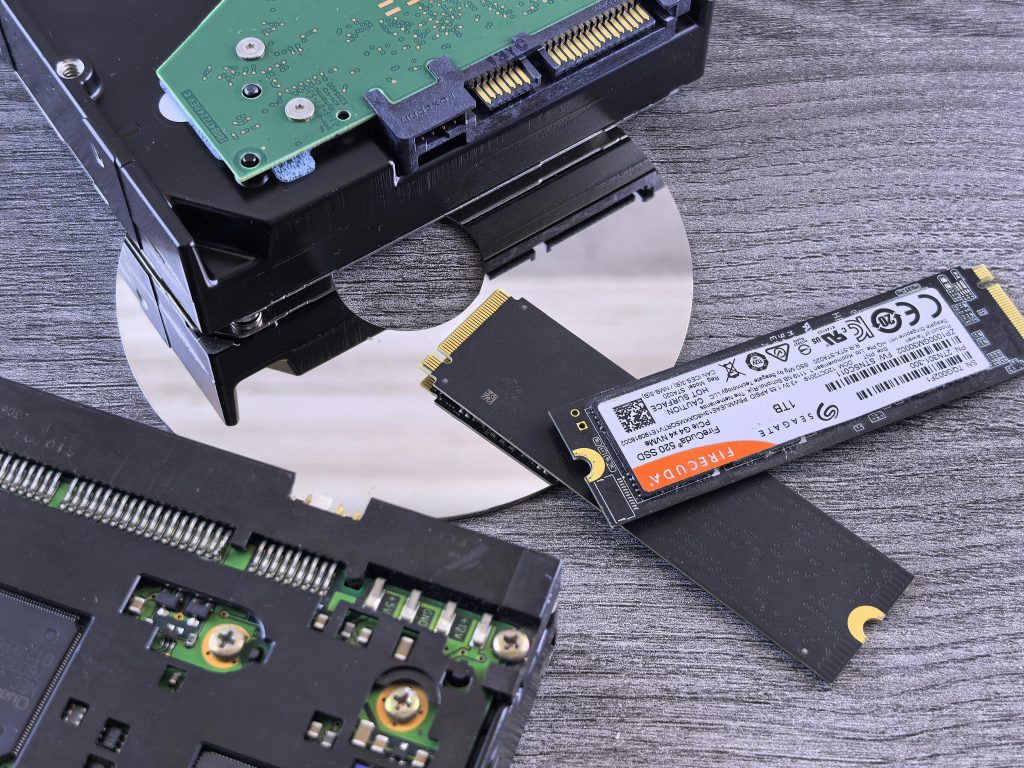
Given that we are racing full steam ahead into another crisis, in which RAMs and SSDs (and other components that use memory) chase the price of gold bars, the bad guys will also wake up and want to exploit the situation to their advantage.
Facebook Marketplace, Amazon, eBay, Bolha … You can find sellers everywhere who want to profit at the expense of others. With the escalation of the situation on the market of RAM, SSDs and other components, we can expect that the supply of fake components will increase significantly. When you are desperate and urgently need a new SSD drive, these suspiciously low prices can tempt you to take a risk. If you buy from verified sellers, you are usually well protected in the event of fraud. For example, on Amazon, it often happens that consumers return a product, but they do not return the real one, but a used older one. The same package then continues its journey to another buyer, who ordered, for example Samsung 9100 Pro, but got the older 980 model.
Fortunately, the return process is relatively easy in this case. The bigger problem is if you are browsing private classifieds. In this case, I recommend that you arrange a short test with the seller.
What programs/tests can you use to verify the authenticity of your new SSD drive?
The best approach is a combination of three methods: verifying the device's identity, testing the actual capacity, and measuring the speed that is supposed to match the declared data. Fake SSDs are usually caught at least in one of these steps.
Windows: the fastest and most reliable tests
Windows has some extremely effective tools available to you that reveal everything from fake capacities to modified controllers.
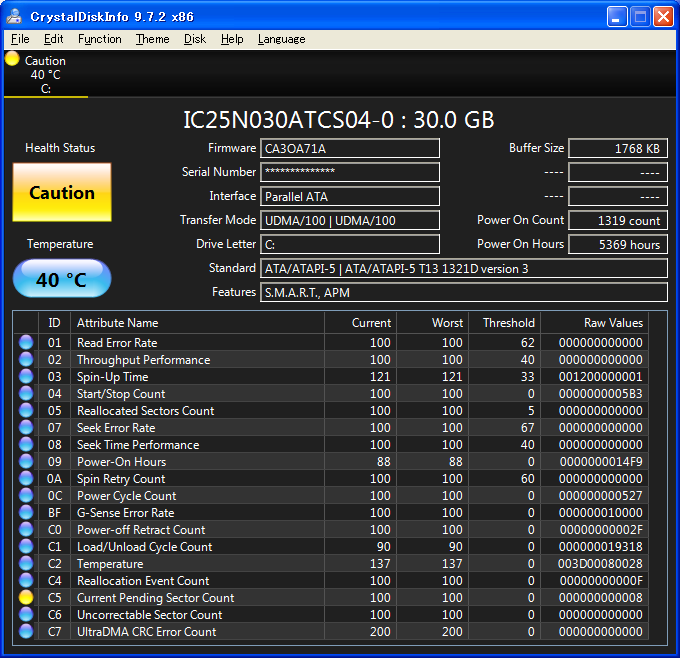
The first step is to check how the SSD presents itself to the operating system. The program CrystalDiskInfo immediately reveals the device identification, serial number, firmware and controller manufacturer. Fake SSDs often hide behind generic labels or firmware numbers that do not belong to any known model.
Once we have verified the identity, the most important test comes next: actual capacity. For this, the most suitable MediaTester, an open-source program that systematically writes and verifies sample data across the entire address space of an SSD. If the drive advertises 1 TB, but MediaTester starts reporting errors at 60 or 120 GB, the story is clear – the capacity is faked.
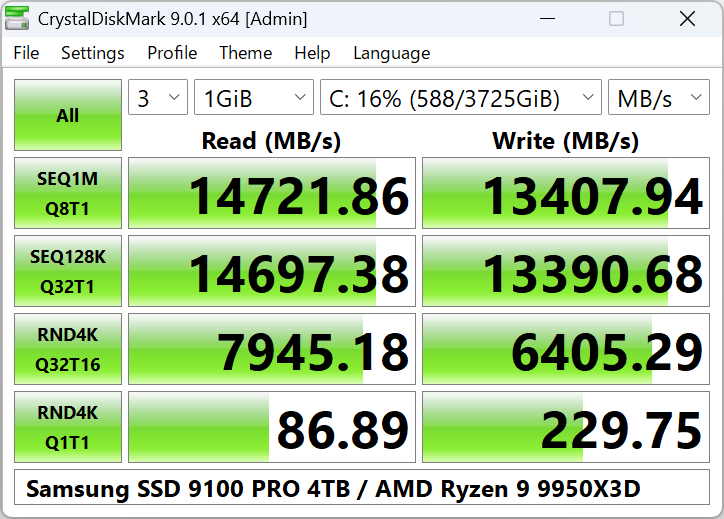
The third step is to check the download speed. Programs such as CrystalDiskMark, can show in a matter of minutes whether an SSD is behaving like an NVMe or an underpowered USB stick. If an NVMe drive promises speeds of 5000 MB/s, but the actual result is closer to 300 MB/s, the answer is clear.
How can you help yourself on macOS?
macOS users have equally effective tools, although the selection is a bit smaller. The quickest way to get started is to use Disk Utility and System Information, where you can check the device identification, controller, protocol support, and SMART values. If the system reports an unusual or generic manufacturer, that's the first warning sign.
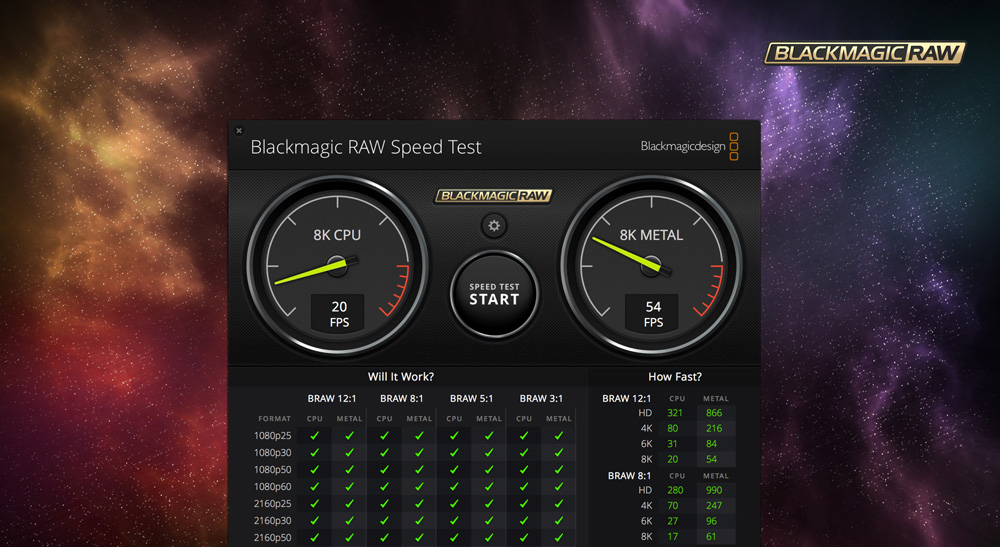
The most widely used tool for checking speed is Blackmagic Disk Speed Test, which clearly shows whether the drive is achieving NVMe-class speeds or is behaving like an external drive of suspicious origin. To test the capacity, users can use tools such as F3 (Fight Flash Fraud), which is equivalent to the H2testw test – writing, reading, and verifying every gigabyte until the drive reveals its true capacity.
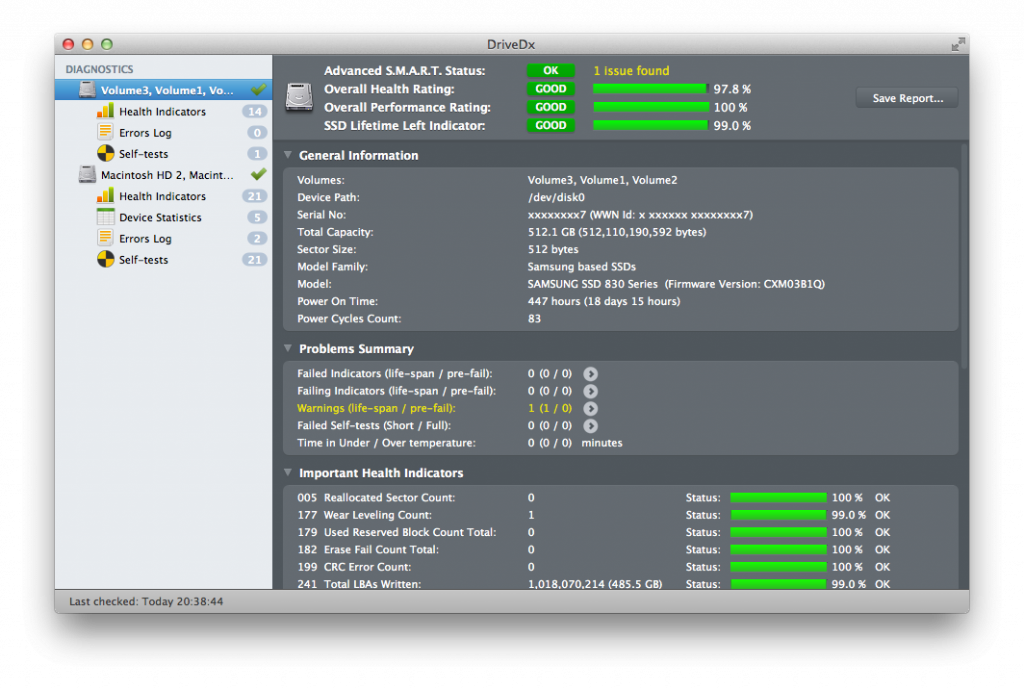
Since analyzing the health of the drive is also crucial for SSDs, it is recommended to use DriveDx. It is an advanced tool that interprets SMART parameters better than Apple's default tools, while also detecting warning signs that counterfeit or poorly designed drives often leave behind. DriveDx can reveal controller problems, suspiciously high write error rates, or NAND chip wear, which is often unusually rapid in counterfeits.
What about LinuxAre there tools to test SSD drives?
For Linux users, testing the integrity of SSDs is not a major hurdle, as tools that detect suspicious drives are available right in the terminal. The first step is to identify the device. The command lsblk and nvme list show the manufacturer name, controller model, and protocol support. If an NVMe drive appears as a generic device with no clear manufacturer or with a firmware tag that doesn't match any known model, this is a strong indication that something is wrong. For a more detailed look, you can also use smartctl, which reveals SMART data, temperature, read errors and the status of NAND cells.
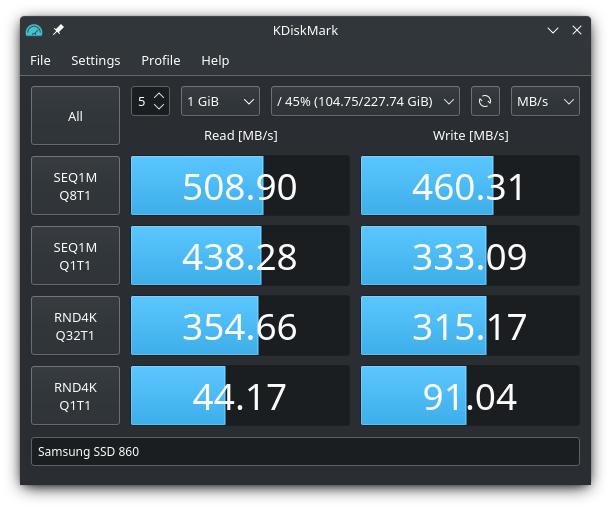
To test capacity, you can use the F3 tool I mentioned earlier for macOS. To check speed, users can use fio, a professional benchmarking tool that accurately measures random access, sequential read, and write speeds. If you're looking for a program that's as easy to use as CrystalDiskMark on Windows, check out KDiskMark.