

Share with others:

How to choose the right Linux distribution?
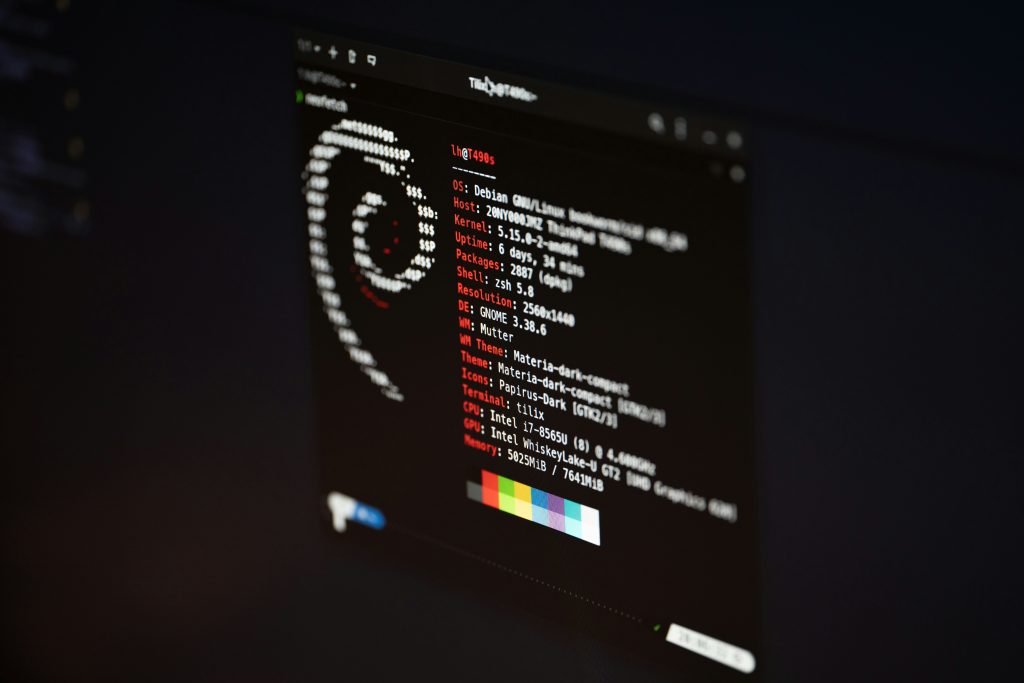
If you have read introductory article, then you know why you might want to leave the comfort (or frustration) of Windows or macOS behind. Now you're standing at the door to the world of Linux, and... there are thousands of doors. Literally.
In the world of Linux, you're not just choosing an operating system, you're also choosing a philosophy. Choosing a distribution (or "distro" as we call it in the jargon) is like choosing a car. They'll all get you from point A to point B, but driving a rally special is drastically different from driving a comfortable family station wagon. And no, they're not all for everyone.
If you've already dived into this mysterious world years ago, the landscape has changed a lot since then. Gaming on Linux is no longer a joke, immutable systems are becoming the standard for stability, and interfaces are more beautiful than ever.
Let's see what to install on your disk without losing your nerve.
For those who just want it to work (beginners)
You're probably coming from a Windows environment. You're used to the Start menu being in the bottom left, programs being closed with a cross in the top right, and not having to open a terminal (a black window with code) to install a browser.
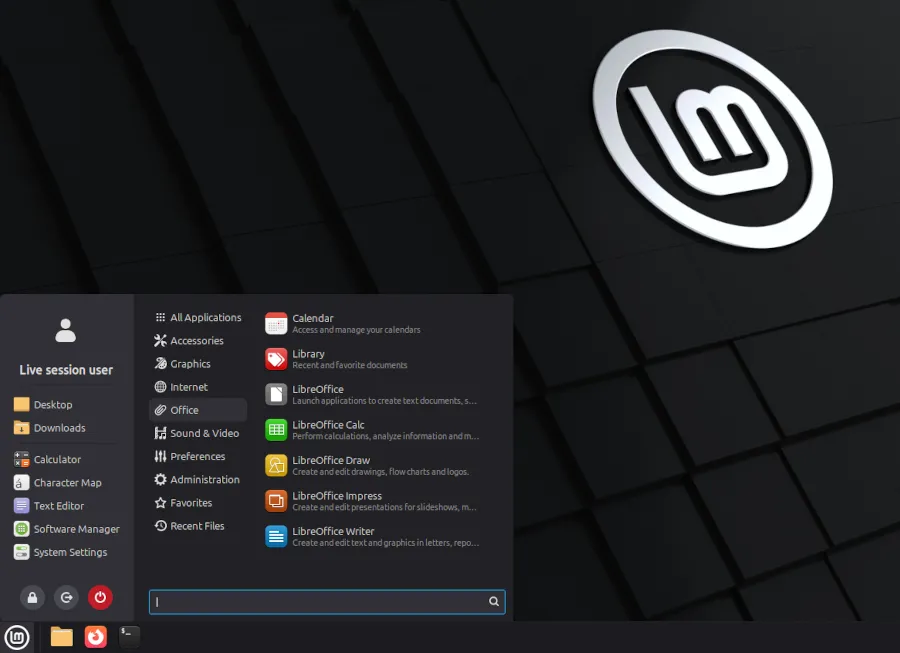
Linux Mint is hiding behind your door.
There's no list of the best Linux distributions without Mint. In fact, it's been on these lists almost since its inception (2006). It may sound cliché, but Mint has matured like a fine wine over that time.
“Mint is boring, and that’s its greatest asset.” I remember this comment on Reddit, and it’s hard to describe this distro better. Mint (especially the Cinnamon desktop version) works as you’d expect. Printer drivers? Mostly work right out of the box. Wi-Fi? No problem. It doesn’t force new features on you that you didn’t ask for.
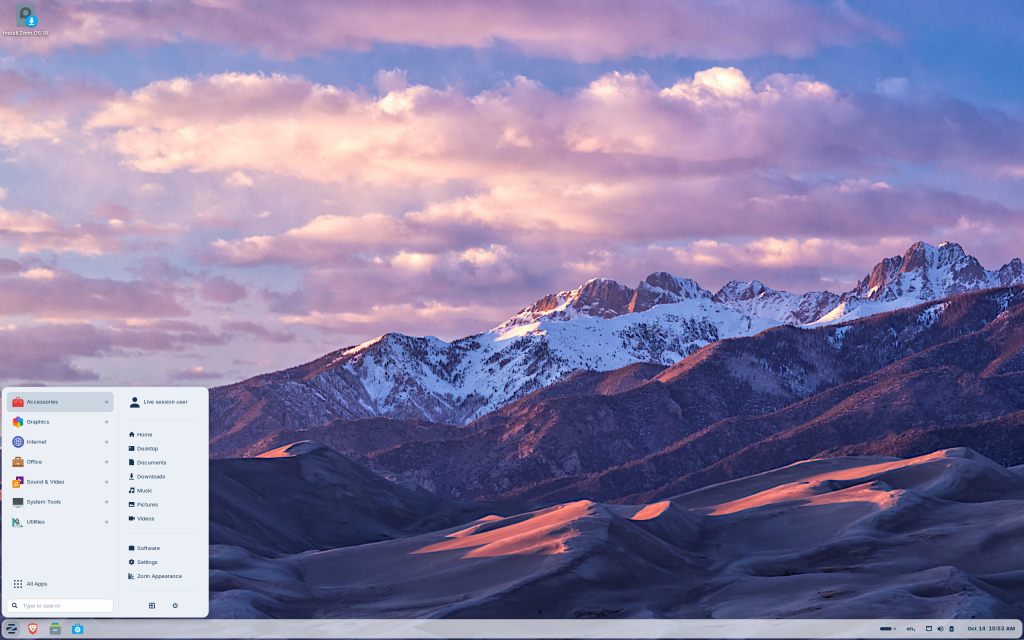
But if Mint seems too “old” for you and you want something that looks like it fell through a wormhole from the year 3000 (or at least resembles macOS or Windows 11), there’s Zorin OS. Zorin is a visually polished distro aimed at defectors. It even has a built-in mechanism that detects when you’re trying to run an .exe file and either kindly suggests an alternative or tries to run it through a compatibility layer. It’s the bridge between worlds that beginners need.
To this category of carefree, I must add a hidden gem (for me), which also encouraged me to go deeper into the rabbit hole we call Linux – TUXEDO OSThe German manufacturer allowed us to build a computer with their TUXEDO OS and I have to say I was pleasantly surprised at how easy it was to switch from Windows, especially with their driver update tool. The latter was my biggest concern.
Although it works best on Tuxedo computers, you can also install it on other computers with certain limitations that I mentioned in the test.
What makes it special? Imagine the most stable base (Ubuntu LTS), but without the forced "Snap" packages that get on many people's nerves, and with the latest KDE Plasma desktop, which is a paradise for those who like to customize the look. It's like a German car - maybe not the most pompous, but it's reliable and stable.

Are you curious about whether gaming is better on Linux?
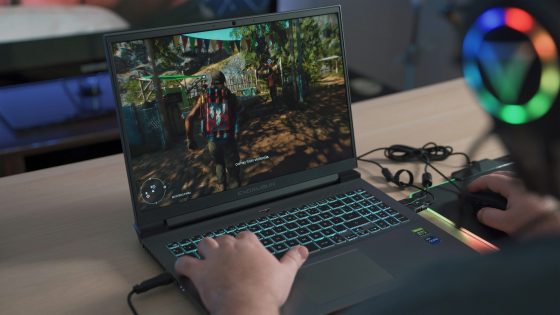
Just five years ago, the phrase “I play on Linux” was accompanied by a look of pity. Today? Today you get a curious look back. Valve, Steam Deck, Proton, SteamOS – these are some of the (main) reasons for a drastic change in this area, but I must not forget the rest of the community, which is not sitting idly by and waiting for Valve (or anyone else) to perform a miracle.
If you're a gamer, you have two main paths in 2025.
The first is Bazzite. It's a name you'll hear everywhere this year. Bazzite is a so-called "atomic" version of Fedora, tailored for gaming. What does that mean? The system is unpatched, ensuring you can't accidentally break it by installing the wrong package, and updates are safe. Bazzite mimics the Steam Deck experience on your desktop. Install it, log into Steam, and start playing. Nvidia drivers? They're already there. Controller support? Fixed.
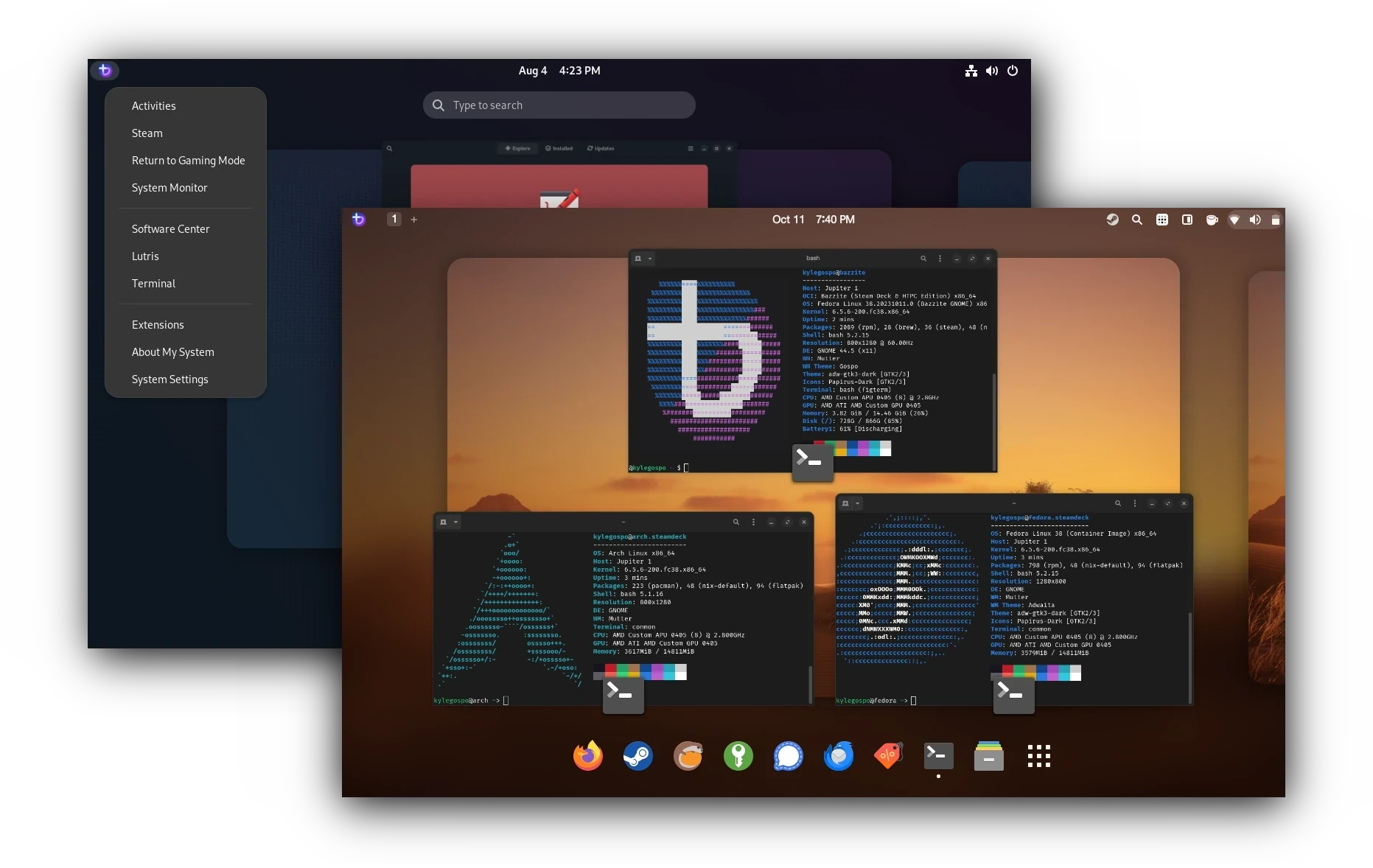
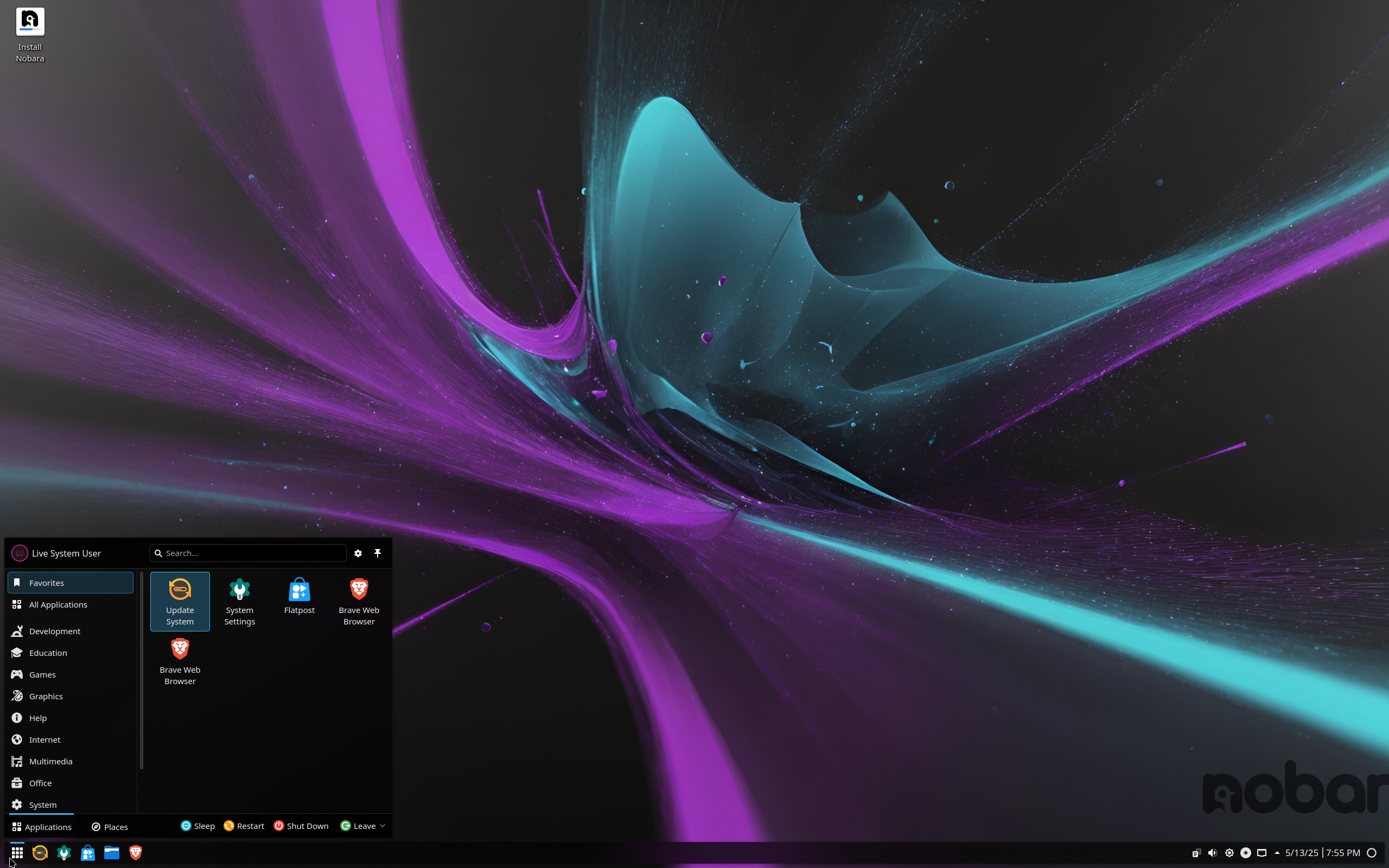
Another great option is the Nobara Project. It is maintained by GloriousEggroll, a man who is a legend in the Linux gaming community (if you use Proton-GE, you know who I am talking about). Nobara is a modified Fedora that comes with pre-installed patches for games that might not run smoothly on regular Linux (such as specific patches for Wine, OBS Studio, codecs). However, it is a system maintained by one person (with the help of the community), so it may be a little less “officially stable” than Bazzite, but it offers exceptional performance.
Before you decide to play on Linux, first www.protondb.com Check if your most played games are compatible. There are games with aggressive anti-cheat systems (like Apex Legends, Valorant, etc.) that don't work on Linux.
For those who want to create and develop (advanced users)
Are you a programmer, a system administrator, or someone who wants to understand how a computer breathes? Or are you simply tired of being treated like a child by the operating system?
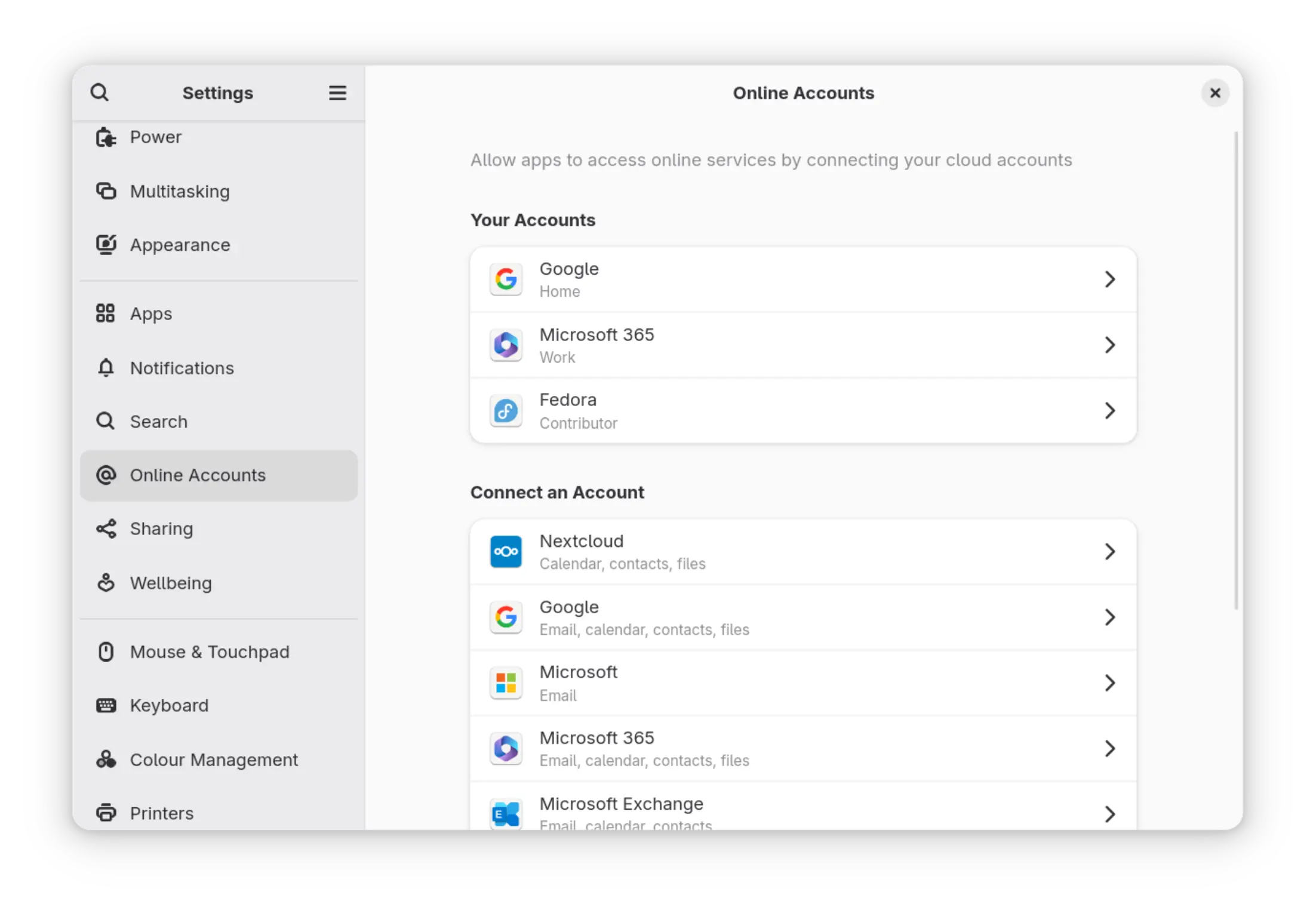
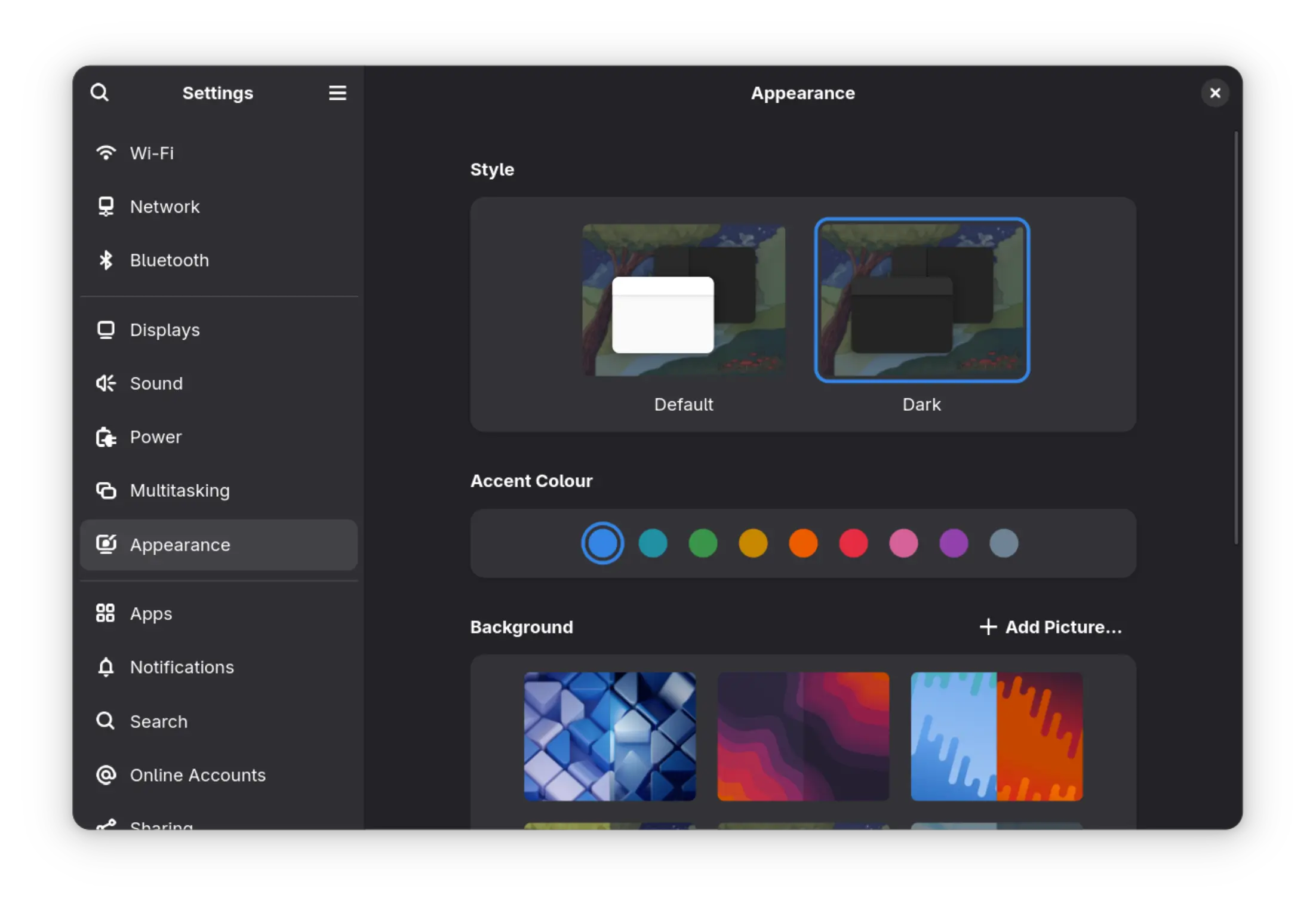
Fedora Workstation is currently the gold standard for developers and professionals. It is used by Linus Torvalds (the father of Linux). It is the perfect balance between innovation and stability. Fedora brings new technologies (like Wayland and PipeWire) faster than Ubuntu, but doesn't push them to the forefront until they are useful. It is clean, professional, and doesn't get in the way of your work.
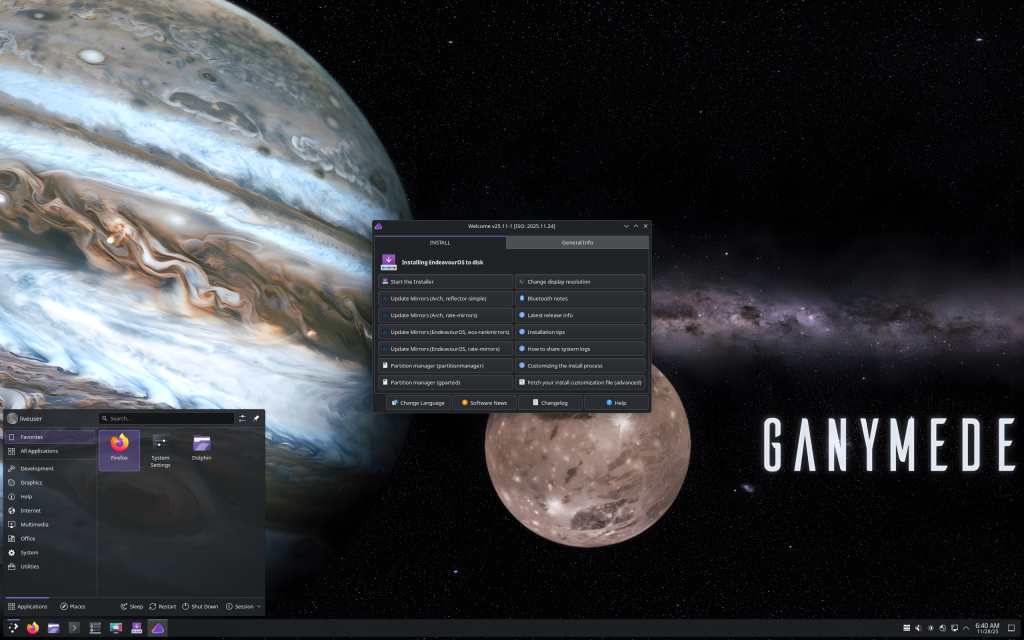
But if you want complete control and aren't afraid to read the documentation, there's Arch Linux or EndeavourOS. Installing "real" Arch is still a kind of rite of passage (installation via the command line), while EndeavourOS gives you the Arch base with an easy graphical installation wizard.
Why would you want to do this? Because you get access to the AUR (Arch User Repository). This is a library where you can find almost every program ever written for Linux. If it exists, it’s in the AUR. But beware, “with great power comes great responsibility.” With these “running” distributions, you get updates as soon as they’re available. This is great for the latest hardware, but sometimes an unplanned update can require your intervention in the terminal.
Where to start?
Have you chosen? Great. Now, don't be that user who wipes out an entire drive without a backup and then asks on a forum where his 2018 vacation photos are.
Before you do anything, back up your data. Seriously. Now.
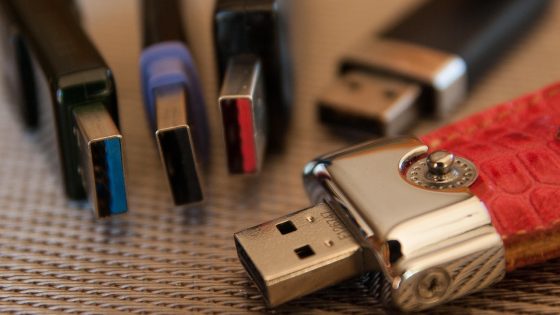
You don't need a degree in computer science to install it. All you need is a USB stick (at least 8 GB) and internet access. The process has become much simpler in recent years, mainly thanks to a tool called Ventoy. There are similar programs, but Ventoy seems to be the easiest.
Preparing the USB stick
You may have used Rufus to create a Windows installation USB stick – where you were forced to format the stick every time you wanted to load a new ISO file. With Ventoy, you don’t have to do that.
- Download Ventoy: Go to official website, download the version for your current system and run it.
- Install to USB: Insert the flash drive, select your USB drive in the program, and click Install. This will format the flash drive (erase everything on it, but only the first time).
- Copy the ISO files: Now comes the best part. Simply copy-paste the ISO file of the Linux distribution you downloaded (for example, linuxmint-22-cinnamon-64bit.iso) onto the flash drive.
- That's it. You can throw Mint, Fedora, TUXEDO OS, and Bazzite on the same stick. When you boot, you get access to a menu where you can choose what you want to boot.
To avoid spending too long searching for the necessary files, you have all the links below.
- USB tool: Ventoy (ventoy.net)
- Linux Mint: linuxmint.com
- TUXEDO OS: tuxedo-computers.com/en/TUXEDO-OS
- Zorin OS: zorin.com
- Buzz: bazzite.gg
- Nobara Project: nobaraproject.org
- Fedora: fedoraproject.org
- EndeavorOS: endeavoros.com
First start and live environment
Once you have the USB stick ready, you need to tell your computer to boot from it instead of the disc. This is usually done by pressing F12, F11, Esc, or Del as soon as you turn on your computer (depending on the manufacturer) to get to the boot menu.
If you are going to install distributions that do not have signed drivers (like some minor distributions), be sure to disable "Secure Boot" in the BIOS, although Mint and Fedora/Ubuntu also work with it enabled.
The best thing about Linux is the so-called Live Environment. When you boot from a USB, nothing is installed on your disk. The system runs in RAM. You can browse the web, see if the sound works, if the Wi-Fi works, if you like the look, how easy it is to find programs, and so on.
If you don't like it, you simply restart your computer, pull out the key, and you're back in Windows as if nothing happened.
How to actually install a Linux distribution?
If you've fallen in love with one of the Linux distributions, look for the Install icon on your desktop.
The installation wizard will guide you through the process. The most critical part is partitioning the disk. If you want to have Linux as your only system, I recommend the “Erase disk and install…” option for beginners. If you want to dual boot (Linux alongside Windows), the installation wizard will detect this and offer you the “Install alongside Windows” option. In this case, you will use the slider to determine how much space you will allocate to each system.
After the installation is complete, which usually takes 10-15 minutes, the system will prompt you to remove the USB stick and press Enter.
The next time you turn on your computer, you won't be greeted by the Microsoft logo, but by something new. Something yours. And all without paying for licenses or running activation scripts.
What about programs?
Don't search the internet for .exe files. Linux has "software stores" (Software Manager, AppCenter, GNOME Software). You open them, type VLC, Steam, Lutris, Spotify, Discord, or LibreOffice, and click install. Everything is verified, secure, and up-to-date. Many popular programs may already be installed by default, depending on which distribution you choose.
Welcome to the other side. You might miss a little bit at first, but at least for me that's part of the charm of Linux. I know Windows pretty well, probably more than most, so exploring Linux is a new challenge that I missed with Windows.
I believe you will find many reasons why you would want to use Linux.
In the next article, I'll go over the basics of how to use Linux, such as some basic commands that you'll use regularly, how to install programs and games, how to find alternatives to programs you're used to on Windows, and so on.